In the previous part, we improved our FastAPI machine learning API by separating its configuration, schemas, and prediction logic into a modular project structure.
But there is another important challenge when moving an application from development to deployment:
How do we make sure the application runs consistently across different environments?
An application may work perfectly on a developer’s machine but behave differently on another system because of differences in Python versions, dependencies, configurations, or infrastructure.
This is where Docker becomes useful.
Docker allows us to package an application together with the environment and dependencies it needs to run. This makes it easier to build, share, and run applications consistently across different environments.
In this part, we’ll start with the fundamentals of Docker and gradually understand how Dockerfiles, images, containers, and registries fit together. We’ll then connect these concepts to machine learning and API deployment.
Overview
- Introduction to Docker
- Why Do We Need Docker?
- How Exactly Docker Is Used
- Docker Engine
- Components of Docker Engine
- Docker Images
- Components of a Docker Image
- Docker Image Lifecycle
- Dockerfile
- Key Components of a Dockerfile
- Docker Containers
- Docker Registries
- Key Components of a Docker Registry
- Types of Docker Registries
- Benefits of Docker Registries
- Docker Use Cases
- Docker for Machine Learning and AI
- Docker Setup
- Docker Desktop
- Building a Docker Image
- Running a Docker Container
- Complete Docker Example
- Output
- Code Execution Explanation
- Key Takeaways
- Conclusion
- What’s Next?
Introduction to Docker
What is Docker?
Docker is a platform designed to help developers build, share, and run containerized applications.
Instead of installing an application’s dependencies and runtime directly on every machine, Docker allows us to package the application and the components it needs into a container.

This helps the same application run more consistently across different environments.
At a high level, the idea is:
Application
    +
Dependencies
    +
Runtime
    ↓
Docker Container
A container provides an isolated environment in which the application can run.
For machine learning applications, this can be particularly useful because an ML application may depend on specific versions of Python libraries, frameworks, and other components. Docker allows these dependencies to be packaged alongside the application so the environment can be reproduced more consistently.
Docker in This Series
In the previous parts, we built and improved an API for serving machine learning predictions.
Now we move one step further:
- FastAPI helps us build and serve the API.
- Docker helps us package and run the application consistently.
Before creating a Docker image or running a container, we first need to understand the core Docker concepts we’ll use throughout this part:
Docker Engine
     ↓
Docker Image
     ↓
Docker Container
     ↓
Running Application
We’ll explore each of these concepts step by step in the sections that follow.
Why Do We Need Docker?
As applications move from development to testing and production, one common problem appears: the application may not behave the same way in every environment.
Differences in configuration, dependencies, and infrastructure can cause an application that works correctly on one machine to behave differently on another.
Docker addresses this problem by providing consistent, isolated, and scalable environments for applications.
Consistency Across Environments
- Problem: Applications can behave differently across development, testing, and production because of differences in configurations, dependencies, and infrastructure.
- Solution: Docker containers encapsulate the components required by an application, helping it run consistently across different environments.
For example:
Development
     ↓
Docker Container
     ↓
Testing
     ↓
Docker Container
     ↓
Production
     ↓
Docker Container
The same containerized application can be used across these environments, reducing environment-related inconsistencies.
Isolation
- Problem: Multiple applications running on the same host can have conflicting dependencies or compete for resources.
- Solution: Docker provides isolated environments for applications, reducing interference between them and helping maintain stable execution.
Conceptually:
Host Machine
│
├── Container A
│   └── Application A
│
├── Container B
│   └── Application B
│
└── Container C
    └── Application C
Each application can run inside its own container rather than sharing the same application environment.
Scalability
- Problem: Handling increased application traffic can require additional configuration and manual intervention.
- Solution: Docker makes horizontal scaling easier by allowing multiple instances of an application to run as separate containers.
For example:
                 Application
                      │
          ┌───────────┼───────────┐
          ↓           ↓           ↓
      Container 1  Container 2  Container 3
If demand increases, additional container instances can be started to handle the workload.
Why This Matters for Machine Learning
Machine learning applications often depend on a specific combination of Python versions, libraries, model files, and application code.
Docker gives us a way to package these components into a consistent environment. This makes the application easier to move between development, testing, and deployment environments.
Consistency + Isolation + Scalability = A more reliable way to run applications
How Exactly Docker Is Used
Docker works by packaging an application and its required components into a Docker image, which can then be used to create and run containers.
At a high level, the process looks like this:
Application Code
       ↓
   Dockerfile
       ↓
   Docker Image
       ↓
   Docker Container
       ↓
Running Application
The Dockerfile contains the instructions required to build the image. The image then acts as a packaged version of the application, and a container is created from that image to run the application.
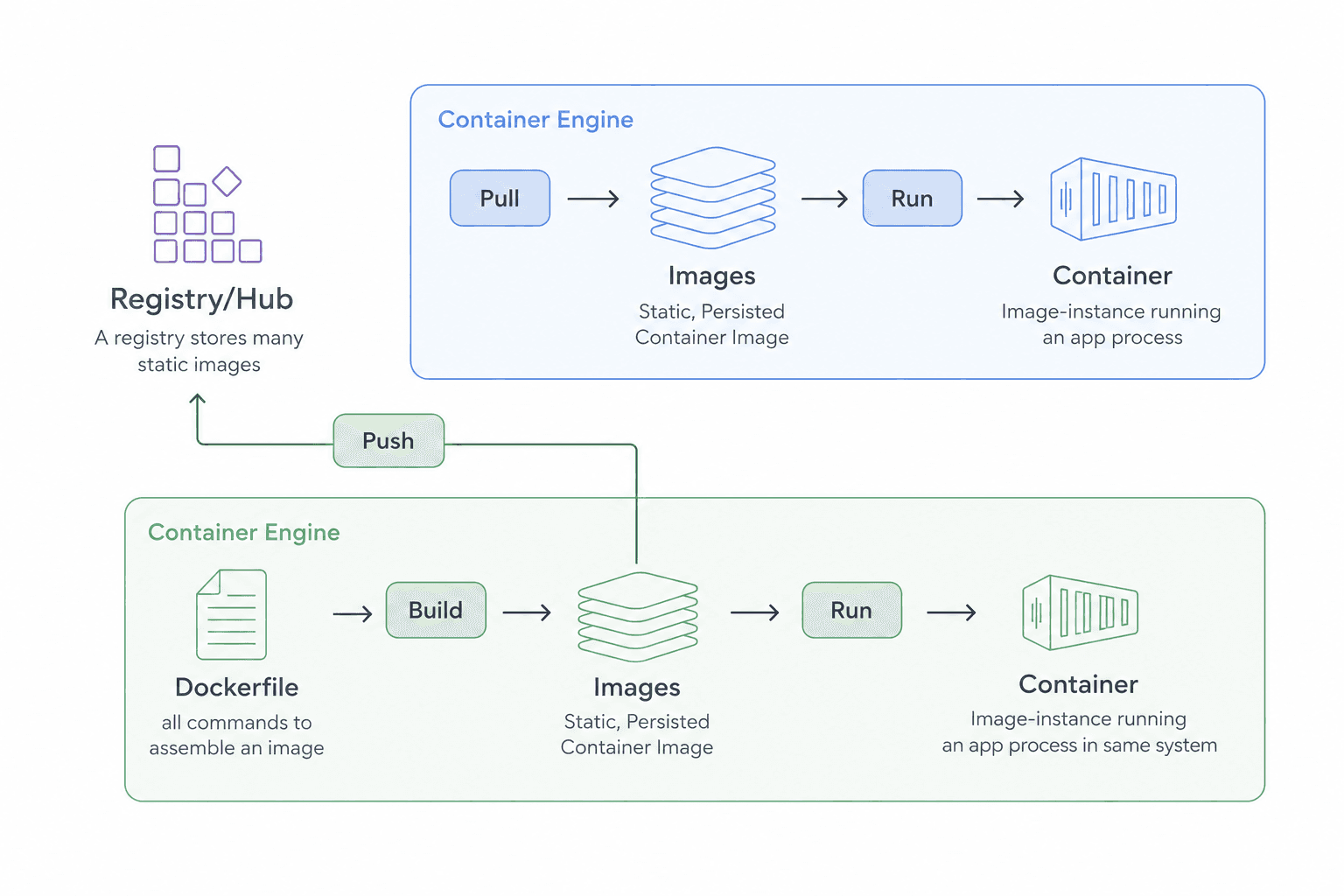
Docker Workflow
The Docker workflow can be understood in a few steps:
1. Write the Application
First, we have our application code along with the files and dependencies required to run it.
2. Create a Dockerfile
A Dockerfile describes how the Docker image should be built. It specifies things such as the base image, working directory, application files, dependencies, and startup command.
3. Build the Docker Image
Docker processes the instructions in the Dockerfile and creates an image.
Dockerfile
    ↓
docker build
    ↓
Docker Image
The image contains the components required to run the application.
4. Run the Container
A container is created from the Docker image and runs the application inside an isolated environment.
Docker Image
      ↓
docker run
      ↓
Docker Container
      ↓
Application
5. Share the Image
The image can be stored locally or pushed to a Docker registry, where it can be shared and later pulled onto another machine.
The complete workflow is therefore:
Application → Dockerfile → Build → Image → Run → Container → Application
This workflow is particularly useful for machine learning applications because the application, runtime, dependencies, and other required components can be packaged into a reproducible environment.
Docker Engine
Docker Engine is the core component of the Docker platform responsible for creating, running, and managing containers.
It acts as the runtime that powers Docker’s containerization capabilities.
You can think of Docker Engine as the layer that turns Docker commands and images into running containers:
Docker Commands
       ↓
Docker Engine
       ↓
Docker Image
       ↓
Docker Container
       ↓
Running Application
When we build or run a containerized application, Docker Engine handles the underlying container operations.
Why Is Docker Engine Important?
A Docker image by itself is only a packaged application environment. To actually create and run containers from those images, we need the Docker Engine.
For example:
Dockerfile
    ↓
Docker Image
    ↓
Docker Engine
    ↓
Docker Container
Docker Engine is also responsible for managing the lifecycle of containers, such as starting, stopping, and restarting them.
In a machine learning application, this allows the packaged application environment to be turned into a running container where the ML application can execute.
The Docker Engine itself consists of several important components. In the next section, we’ll look at the Docker Daemon, Docker CLI, and Docker REST API and understand how they work together.
Components of Docker Engine
Docker Engine consists of three main components that work together to create, run, and manage Docker containers:
- Docker Daemon
- Docker CLI
- Docker REST API
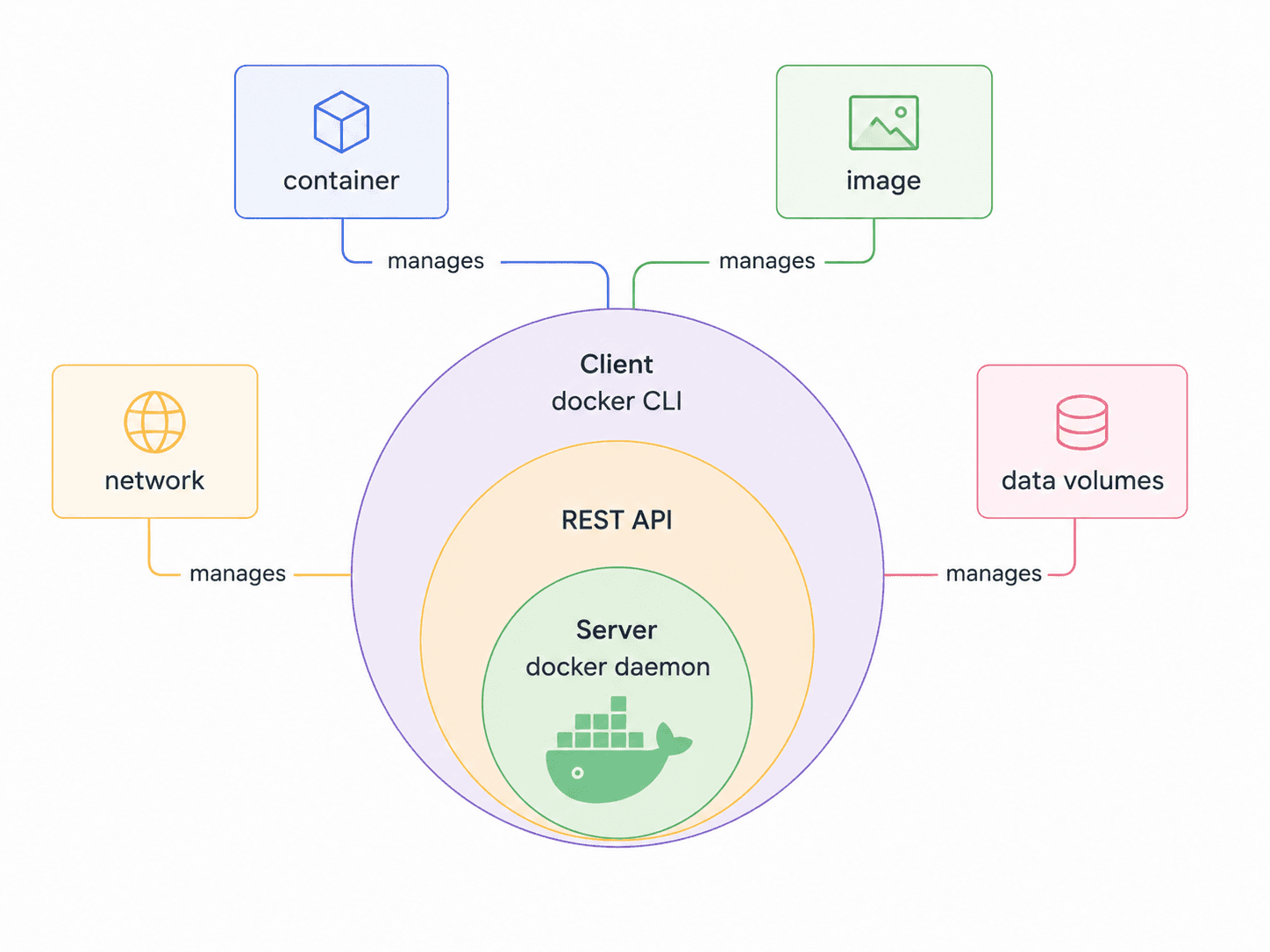
The overall interaction can be understood as:
User
  ↓
Docker CLI
  ↓
Docker REST API
  ↓
Docker Daemon
  ↓
Images / Containers / Networks / Volumes
1. Docker Daemon
The Docker daemon is a background service running on the host machine. It manages Docker objects such as images, containers, networks, and volumes.
It listens for Docker API requests and performs container lifecycle operations such as:
- Starting containers
- Stopping containers
- Restarting containers
- Managing images
- Managing networks and volumes
In simple terms: Docker Daemon → Does the actual Docker management work.
2. Docker CLI
The Docker Command Line Interface (CLI) is the tool developers use to interact with Docker.
For example, developers can use Docker commands to:
- Build images
- Run containers
- Stop containers
- Manage Docker resources
The CLI sends these commands to the Docker daemon for execution.
Conceptually:
Developer
    ↓
docker command
    ↓
Docker CLI
    ↓
Docker Daemon
3. Docker REST API
The Docker REST API provides a way for applications and tools to communicate with the Docker daemon.
It allows Docker operations to be performed programmatically and can also be used to automate Docker-related tasks or integrate Docker functionality into other applications.
The relationship between the three components is:
                 Docker Engine
                      │
          ┌───────────┼───────────┐
          ↓           ↓           ↓
   Docker CLI    Docker REST    Docker
                    API         Daemon
                                 │
                    ┌────────────┼────────────┐
                    ↓            ↓            ↓
                 Images      Containers    Networks
The key idea is that the CLI and REST API provide ways to communicate with the Docker daemon, while the daemon manages the Docker resources and container lifecycle.
Docker CLI → REST API → Docker Daemon → Docker Resources
Docker Images
A Docker image is a lightweight, standalone package that contains everything needed to run an application, including the application code, runtime, libraries, dependencies, environment variables, and configuration.
A Docker image acts as the blueprint for creating Docker containers.
The relationship is:
Docker Image
     ↓
Docker Container
     ↓
Running Application
For example, when we package an application into a Docker image, the image contains the required environment and dependencies. When that image is run, Docker creates a container from it.
This is particularly useful for machine learning applications because ML projects often depend on specific versions of Python, libraries, and other runtime components.
Docker Image as a Blueprint
You can think of a Docker image as a template:
Docker Image
│
├── Application Code
├── Python Runtime
├── Required Libraries
├── Dependencies
└── Configuration
        ↓
   Docker Container
        ↓
   Application Running
The same image can be used to create multiple containers, allowing the application to run consistently across different environments.
- Docker Image = Packaged application environment
- Docker Container = Running instance of that image
Components of a Docker Image
A Docker image is made up of several components that together provide everything required to run an application.
The main components are:
- Base Image
- Application Code
- Dependencies
- Metadata
1. Base Image
The base image provides the starting environment for the Docker image.
For example, our Dockerfile uses:
FROM python:3.9-slimThis provides a lightweight Python 3.9 environment that the application can run on.
2. Application Code
The image contains the actual code required by the application.
For example, our project copies the application files into the image using:
COPY . /appThis makes the project files available inside the Docker image.
3. Dependencies
Applications usually require external libraries and packages.
Our Dockerfile installs the project’s dependencies with:
RUN pip install -r requirements.txtThis ensures that the required Python packages are available inside the image.
4. Metadata
A Docker image can also contain metadata and configuration information that describes how the application should run.
For example, our Dockerfile defines the working directory:
WORKDIR /appand specifies the command used to start the application:
CMD ["python", "./app.py"]Putting It Together
The components can be visualized as:
Docker Image
│
├── Base Image
│   └── Python 3.9
│
├── Application Code
│   └── app.py
│
├── Dependencies
│   └── requirements.txt
│
└── Metadata / Configuration
    ├── Working Directory
    └── Startup Command
Together, these components form a portable application package that can be used to create containers.
Docker Image = Base Environment + Application + Dependencies + Configuration
Docker Image Lifecycle
A Docker image goes through several stages from creation to running an application.
The typical lifecycle is:
Dockerfile
    ↓
docker build
    ↓
Docker Image
    ↓
Store Locally / Push to Registry
    ↓
Pull Image
    ↓
Docker Container
    ↓
Running Application
1. Image Creation
A Docker image is created using a Dockerfile.
The Dockerfile contains instructions that define the base environment, application code, dependencies, and configuration.
Docker uses these instructions to build the image:
Dockerfile → docker build → Docker Image
2. Image Storage
After an image is built, it can be stored locally on the machine.
Images can also be pushed to a Docker Registry, allowing them to be shared with other machines or deployment environments.
Docker Image
     ↓
Local Docker Storage
     │
     └──→ Docker Registry
3. Image Distribution
When an image is stored in a registry, another machine can pull that image when it needs to run the application.
Docker Registry
       ↓
    Pull Image
       ↓
   Local Machine
This makes it possible to distribute the same application environment across different systems.
4. Container Creation
A Docker image itself is not the running application. A container is created from the image.
Docker Image
     ↓
Docker Container
     ↓
Running Application
Multiple containers can be created from the same image when required.
5. Image Lifecycle Overview
Putting the complete lifecycle together:
┌──────────────┐
│  Dockerfile  │
└──────┬───────┘
       ↓
   docker build
       ↓
┌──────────────┐
│ Docker Image │
└──────┬───────┘
       ↓
 ┌─────┴─────┐
 ↓           ↓
Local      Registry
Storage      │
             ↓
          Pull Image
             ↓
      ┌─────────────┐
      │  Container  │
      └──────┬──────┘
             ↓
     Running Application
Dockerfile → Image → Registry → Container → Running Application
Dockerfile
A Dockerfile is a text file that contains a set of instructions used to build a Docker image.
Instead of manually installing the runtime, dependencies, and application files every time, we define these steps in a Dockerfile. Docker then uses those instructions to create a reproducible image.
The basic process is:
Dockerfile
    ↓
Docker Build
    ↓
Docker Image
    ↓
Docker Container
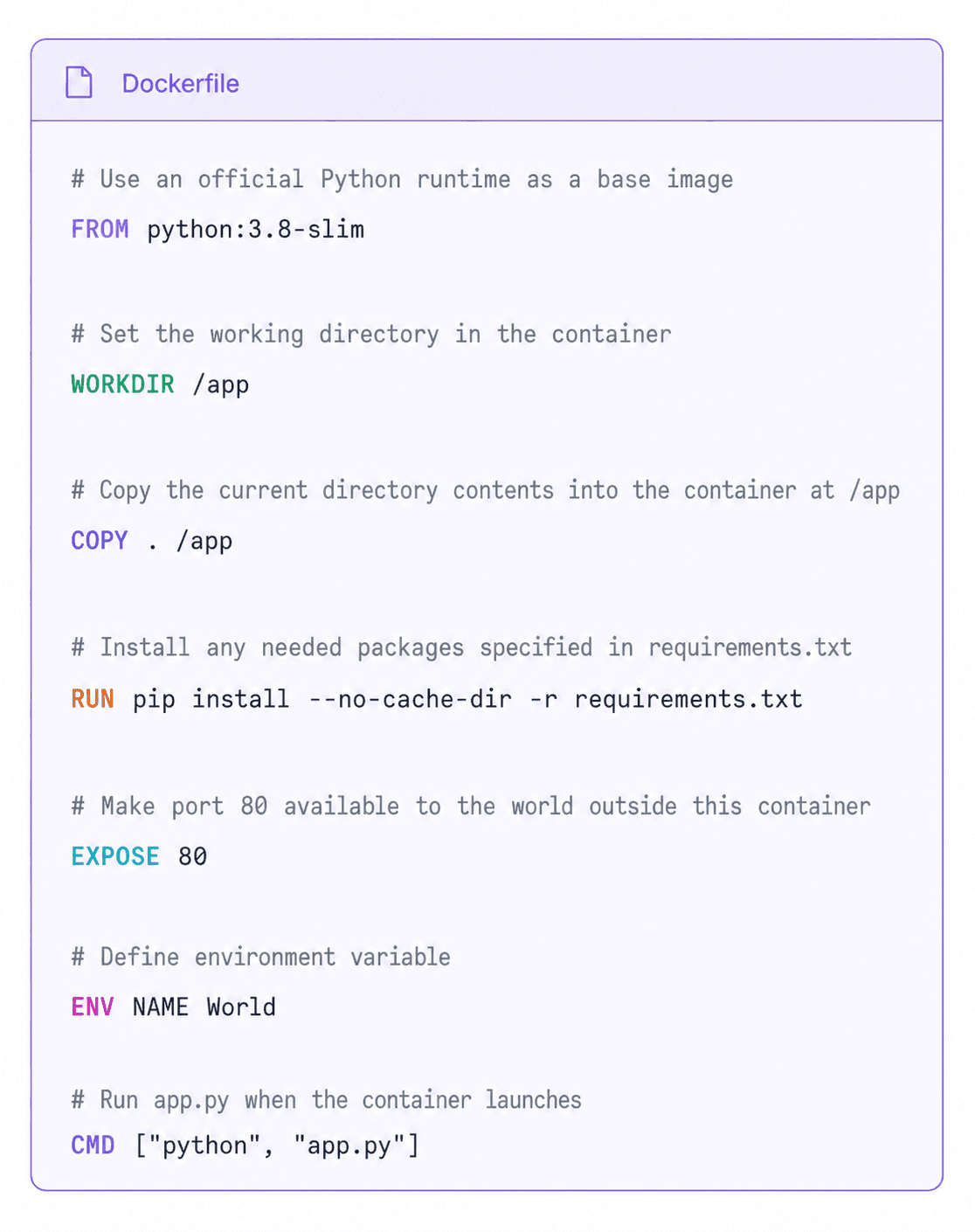
Our project uses the following Dockerfile:
# base image
FROM python:3.9-slim

# workdir
WORKDIR /app

# copy
COPY . /app

# run
RUN pip install -r requirements.txt

# command
CMD ["python", "./app.py"]
# CMD ["streamlit", "run", "./app.py"]
Each instruction has a specific purpose:
FROM— Defines the base image. Here, we start withpython:3.9-slim.WORKDIR— Sets/appas the working directory inside the image.COPY— Copies the project files into/app.RUN— Executes a command while building the image. Here, it installs the packages listed inrequirements.txt.CMD— Defines the default command used when a container starts.
Dockerfile and Image Layers
Docker processes Dockerfile instructions in sequence. Each instruction contributes to the resulting image and its layers.
Conceptually:
FROM python:3.9-slim
        ↓
     Base Layer
        ↓
WORKDIR /app
        ↓
COPY . /app
        ↓
RUN pip install -r requirements.txt
        ↓
    Dependencies
        ↓
CMD ["python", "./app.py"]
        ↓
   Docker Image
This makes the Dockerfile an important part of creating consistent and reproducible application environments.
Dockerfile = Instructions for building a Docker image
Key Components of a Dockerfile
A Dockerfile is made up of instructions that define how a Docker image should be built and how the application should run.
Common Dockerfile instructions include:
-
Base Image (
FROM): Specifies the starting point for the image, which could be a minimal operating system, a specific version of a language runtime, or another image.
Example:FROM ubuntu:20.04 -
Labels (
LABEL): Adds metadata to the image, such as version, description, or maintainer.
Example:LABEL version="1.0" description="My application" -
Run Commands (
RUN): Executes commands in the image during the build process, typically used to install software packages.
Example:RUN apt-get update && apt-get install -y python3 -
Copy File (
COPY): Copies files or directories from the host system to the image.
Example:COPY ./app -
Environment Variables (
ENV): Sets environment variables in the image.
Example:ENV PATH /app/bin:$PATH -
Work Directory (
WORKDIR): Sets the working directory for subsequent instructions.
Example:WORKDIR /app -
Expose Ports (
EXPOSE): Informs Docker that the container listens on specified network ports.
Example:EXPOSE 8080 -
Command (
CMD): Provides a default command to run when the container starts.
Example:CMD ["python", "app.py"] -
Volume (
VOLUME): Creates a mount point with a specified path and marks it as holding externally mounted volumes from the host or other containers.
Example:VOLUME ["/data"] -
Arguments (
ARG): Defines build-time variables.
Example:ARG VERSION=1.0
Docker Containers
A Docker container is a lightweight, portable, and isolated environment created from a Docker image.
While a Docker image contains the packaged application and its dependencies, a container is the running instance of that image.
Docker Image
     ↓
Docker Container
     ↓
Running Application
A container provides an isolated environment where an application can run without interfering with other applications on the same host system.
How Containers Work
When Docker starts a container, it uses an existing Docker image as the foundation.
For example:
Docker Image
│
├── Application Code
├── Runtime
├── Dependencies
└── Configuration
        ↓
   Docker Container
        ↓
  Application Running
The container includes everything required to execute the application while sharing the underlying host system’s resources.
Why Containers Are Useful
Docker containers provide:
- Isolation — Applications can run in separate environments.
- Portability — The same container image can be used across different environments.
- Consistency — Applications run with the same packaged dependencies and configuration.
- Lightweight execution — Containers are generally more lightweight than traditional virtual machines.
- Scalability — Multiple containers can be created from the same image when additional application instances are needed.
For machine learning applications, this can help package the application together with its runtime and required libraries, making deployment more consistent across environments.
- Docker Image = Template
- Docker Container = Running instance of that template
Docker Registries
A Docker Registry is a service used to store and distribute Docker images.
Instead of keeping Docker images only on your local machine, a registry allows images to be uploaded, shared, and downloaded by other machines or deployment environments.
The basic flow is:
Docker Image
     ↓
Push
     ↓
Docker Registry
     ↓
Pull
     ↓
Other Machine
A registry is especially useful when an application needs to be deployed across multiple environments or machines.
Why Use a Docker Registry?
A Docker Registry provides a central place to manage and distribute images.
For example:
Developer Machine
       │
       │ Push Image
       ↓
┌─────────────────┐
│ Docker Registry │
└────────┬────────┘
         │
    ┌────┴────┐
    ↓         ↓
 Server 1   Server 2
    │         │
    ↓         ↓
Container  Container
This allows the same Docker image to be used across different environments.
The Docker Hub is a commonly used public Docker Registry, while organizations can also use private registries for internal applications and images.
Docker Registry = Central place to store and distribute Docker images
Key Components of a Docker Registry
A Docker Registry mainly consists of repositories and tags, which help organize and identify different Docker images.
Repositories
A repository is a collection of related Docker images, typically different versions of the same application.
A repository can contain multiple tags, with each tag representing a different version of an image.
For example:
myapp
├── 1.0
├── 2.0
└── latest
Tags
Tags are used to version images within a repository.
For example:
myapp:1.0
myapp:2.0
myapp:latest
Here, 1.0, 2.0, and latest are tags for different versions of the myapp image.
- Repository = Collection of related images
- Tag = Identifier for a specific image version
Types of Docker Registries
Docker Registries can be categorized based on how and where Docker images are stored and managed.
The main types are:
1. Docker Hub
Docker Hub is a popular public Docker Registry where developers can store and share Docker images.
It provides publicly available images as well as repositories for sharing application images.
2. Private Registries
Private Registries are used by organizations to store Docker images privately.
They are useful when images contain proprietary application code or other resources that should not be publicly accessible.
3. Third-Party Registries
Cloud providers and other platforms also provide Docker Registry services.
Examples include:
- Amazon Elastic Container Registry (ECR)
- Google Container Registry (GCR)
- Azure Container Registry (ACR)
These registries can be integrated with cloud-based application deployment and CI/CD workflows.
- Docker Hub → Public image sharing
- Private Registry → Organization-controlled images
- Third-Party Registry → Cloud/platform-based image storage
Benefits of Docker Registries
Docker Registries provide a central place to store and distribute Docker images. They offer several benefits when managing and deploying applications.
- Centralized Management: Provides a central location for storing and managing Docker images.
- Version Control: Tags can be used to manage different versions of Docker images.
- Collaboration: Developers and teams can easily share Docker images with each other.
- Security: Private registries can be used to control access to application images.
- CI/CD Integration: Docker Registries can be integrated into CI/CD pipelines to store and distribute images during application deployment.
These benefits make Docker Registries useful for managing images across development, testing, and production environments.
Docker Registry = Centralized image management + Versioning + Sharing + Deployment support
Docker Use Cases
Docker can be used across different stages of software development, deployment, and operations.
Common use cases include:
- Microservices: Each service can run in its own container with its required dependencies.
- CI/CD: Docker containers can provide consistent environments for building, testing, and deploying applications.
- Cloud Migration: Applications can be packaged into containers and moved between different cloud environments.
- Scalable Web Applications: Multiple container instances can be created to handle increased application traffic.
- Testing and QA: Containers provide isolated and consistent environments for testing applications.
- Machine Learning and AI: ML applications can be packaged together with their required runtime, libraries, and dependencies.
- API Development and Deployment: APIs can be containerized to simplify their deployment and make their runtime environment consistent.
These use cases make Docker useful not only for traditional web applications but also for machine learning applications and APIs.
Docker helps package applications into consistent, portable environments across development, testing, and production.
Docker for Machine Learning and AI
Docker is particularly useful for Machine Learning and AI applications because these projects often depend on specific versions of Python, libraries, frameworks, and system dependencies.
Without containerization, differences between development and production environments can cause compatibility problems.
Docker helps package the application together with its required environment so it can be run consistently across different systems.
Why Docker Is Useful for ML and AI
- Consistent Environment: The same Python version and dependencies can be used across development, testing, and production.
- Dependency Management: ML libraries and their required versions can be packaged inside the Docker image.
- Reproducibility: The same Docker image can be used to recreate the application environment.
- Portability: A containerized ML application can be moved between different environments.
- API Deployment: Machine learning models can be packaged together with APIs such as FastAPI and deployed as containers.
- Scalability: Multiple containers can be created when an ML API needs to handle additional requests.
A simplified ML deployment flow looks like:
ML Model + Application Code
            ↓
        Dockerfile
            ↓
       Docker Image
            ↓
      Docker Container
            ↓
    Running ML Application
This makes Docker a useful part of the ML deployment workflow, especially when an application has multiple dependencies and needs a consistent runtime environment.
Docker helps make machine learning applications more consistent, portable, and easier to deploy.
Docker Setup
Before working with Docker, we need to set up Docker on our system so that we can build images and run containers.
Docker provides the tools required to work with containers locally. Once Docker is installed and configured, we can use it to build and run applications in isolated environments.
The setup process prepares the environment for working with the Dockerfiles and images discussed in the previous sections.
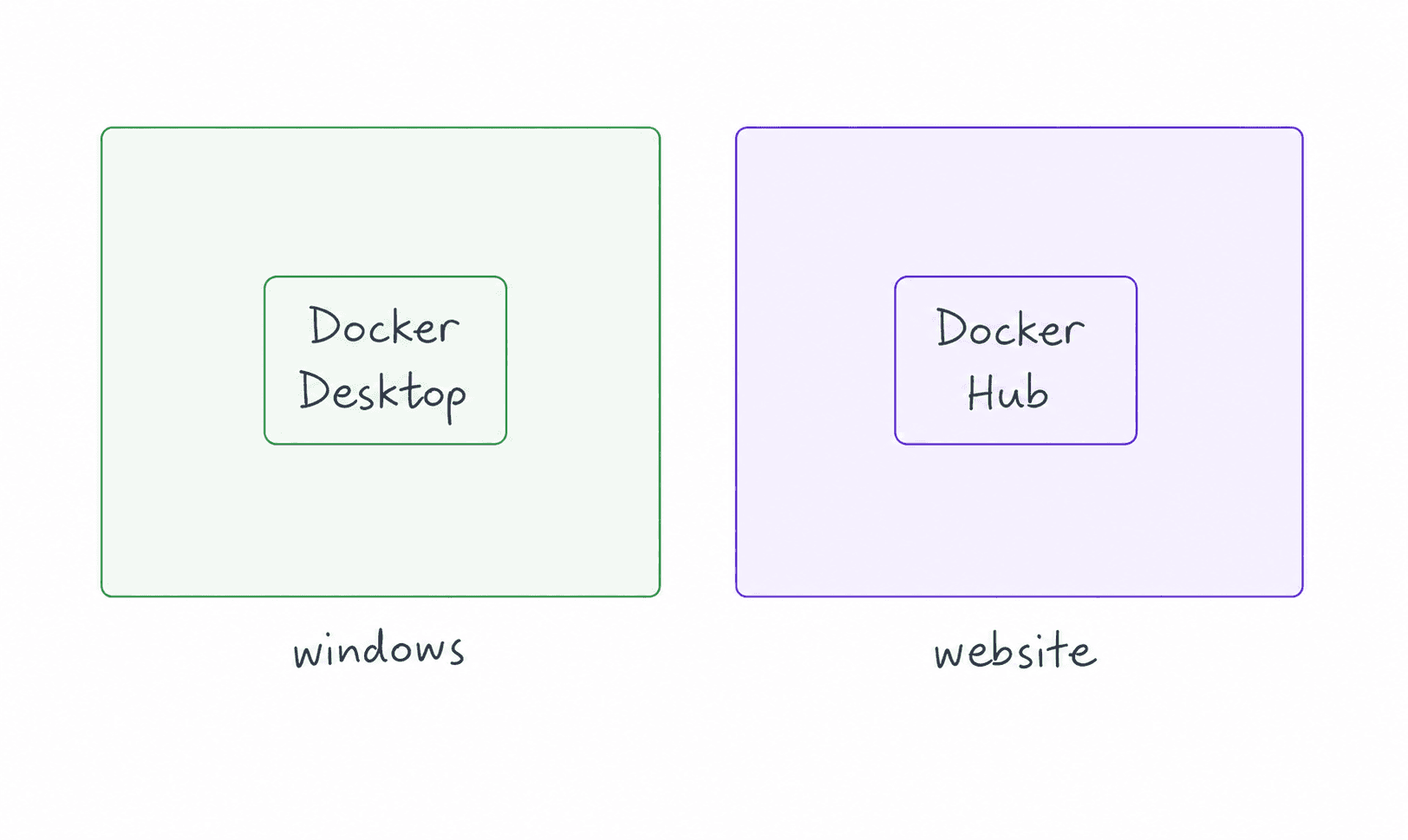
Docker Setup → Install Docker → Configure the environment → Build and run containers
Docker Desktop
Docker Desktop is a desktop application that provides a convenient environment for developing and managing Docker applications.
It brings the Docker tools together in a graphical interface, making it easier to work with Docker images and containers without relying entirely on command-line operations.
Docker Desktop can be used to:
- Build and manage Docker images
- Create and manage containers
- View running and stopped containers
- Manage Docker resources
- Work with Docker-based applications locally
For developers learning Docker, Docker Desktop provides a visual way to understand what is happening with images and containers.
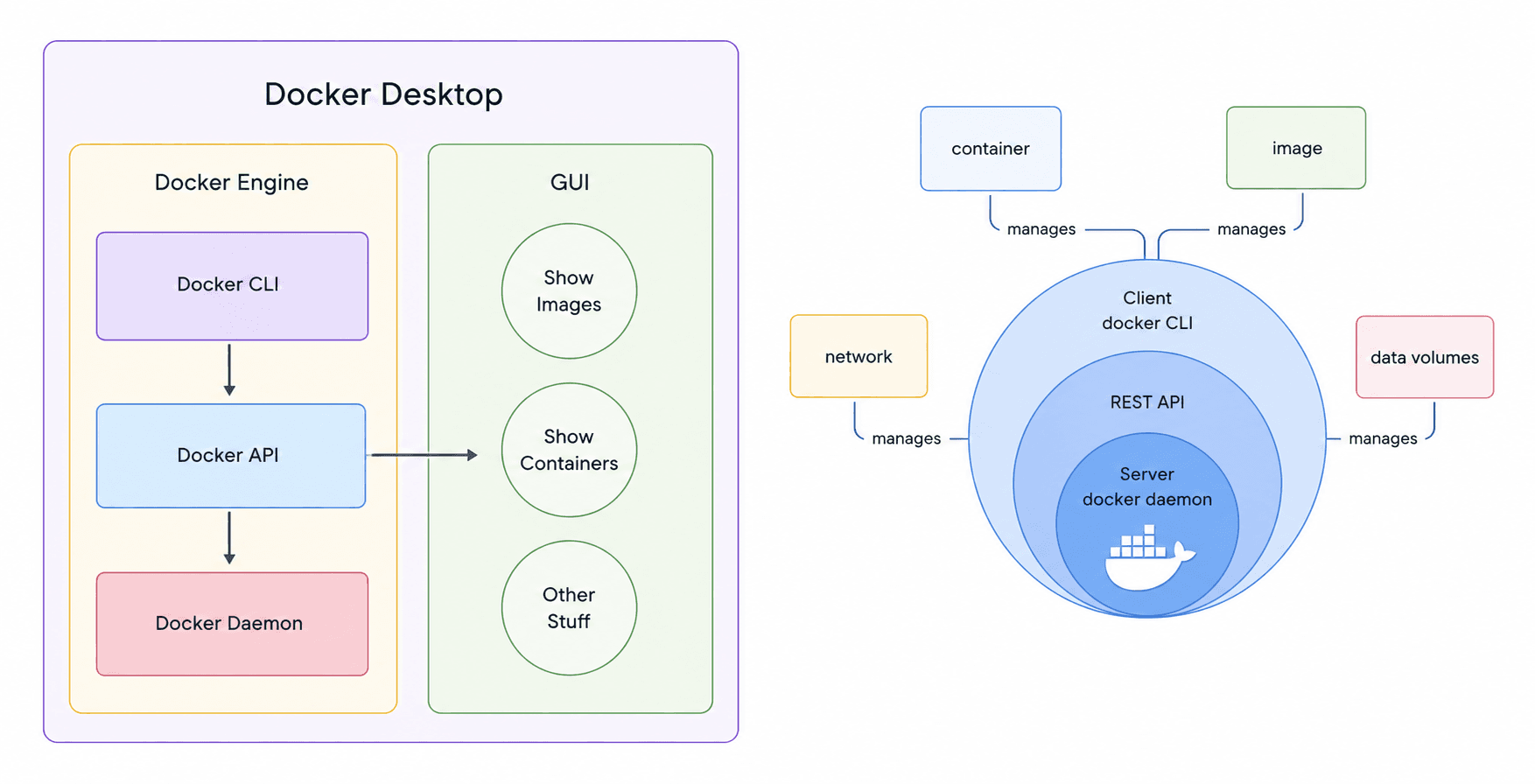
Docker Desktop provides a convenient local environment for building and managing Docker applications.
Building a Docker Image
Once the Dockerfile is ready, the next step is to build a Docker image from it.
The Dockerfile contains the instructions Docker needs to create the image. During the build process, Docker executes those instructions and creates the final image.
The basic process is:
Dockerfile
    ↓
Docker Build
    ↓
Docker Image
For our project, the Dockerfile defines the base Python environment, copies the application files, installs the dependencies, and specifies the command used to start the application.
FROM python:3.9-slim

WORKDIR /app

COPY . /app

RUN pip install -r requirements.txt

CMD ["python", "./app.py"]
The resulting image contains:
Python 3.9 Environment
        +
Application Files
        +
Required Dependencies
        +
Application Configuration
        ↓
    Docker Image
Once the image has been built, it can be used as the foundation for creating a Docker container.
Dockerfile → Build Process → Docker Image
Running a Docker Container
Once the Docker image has been built, the next step is to create and run a Docker container from that image.
The relationship is:
Docker Image
     ↓
Run Image
     ↓
Docker Container
     ↓
Running Application
A container is the runtime instance of a Docker image. When the container starts, Docker uses the configuration packaged in the image to launch the application.
For our project, the Dockerfile specifies:
CMD ["python", "./app.py"]This means that when the container starts, Docker runs app.py using the Python environment provided by the image.
Container Execution Flow
┌─────────────────┐
│  Docker Image   │
│                 │
│ Python 3.9      │
│ Application     │
│ Dependencies    │
└────────┬────────┘
         ↓
   Create Container
         ↓
┌─────────────────┐
│ Docker Container│
│                 │
│  Python app.py  │
└────────┬────────┘
         ↓
 Running Application
The important distinction is:
- Docker Image → packaged application environment
- Docker Container → running instance of that image
Once the container is running, the application executes inside its isolated environment.
Build an image → Run the image → Get a container → Run the application
Complete Docker Example
Now that we understand Dockerfiles, images, containers, and registries, let’s put these concepts together using the Docker example from this project.
The project contains a Dockerfile that packages the application with its Python runtime and dependencies.
Dockerfile
# base image
FROM python:3.9-slim

# workdir
WORKDIR /app

# copy
COPY . /app

# run
RUN pip install -r requirements.txt

# command
CMD ["python", "./app.py"]
# CMD ["streamlit", "run", "./app.py"]
Application Code
The Dockerfile runs app.py when the container starts:
from flask import Flask, render_template, request

app = Flask(__name__)

@app.route("/", methods=["GET", "POST"])
def index():
    table = []

    if request.method == "POST":
        number = int(request.form["number"])

        for i in range(1, 11):
            table.append(f"{number} × {i} = {number * i}")

    return render_template("index.html", table=table)

if __name__ == "__main__":
    app.run(host="0.0.0.0", debug=True)
The application also uses an HTML template:
<!DOCTYPE html>
<html>
  <head>
    <title>Multiplication Table</title>
  </head>
  <body>
    <h2>Generate Multiplication Table</h2>
    <form method="POST">
      <input type="number" name="number" placeholder="Enter number" required />
      <button type="submit">Generate</button>
    </form>
    {% if table %}
    <h3>Table:</h3>
    {% for row in table %}
    <p>{{ row }}</p>
    {% endfor %} {% endif %}
  </body>
</html>
How the Example Fits Together
The complete structure is:
Project Files
│
├── Dockerfile
├── app.py
├── index.html
└── requirements.txt
        │
        ↓
   Docker Build
        │
        ↓
   Docker Image
        │
        ↓
 Docker Container
        │
        ↓
 Flask Application
The Dockerfile uses python:3.9-slim as the base image, copies the project into /app, installs the dependencies from requirements.txt, and starts app.py when the container runs.
Note: The repository’s current Docker example is a Flask multiplication-table application, not the FastAPI machine-learning API from the earlier parts. We should keep that distinction clear rather than presenting this example as the ML API.
Output
After building the Docker image and running the container, the application starts using the command defined in the Dockerfile:
CMD ["python", "./app.py"]The Flask application provides a simple web interface where the user can enter a number and generate its multiplication table.
For example, if the user enters:
5The application displays:
Table:

5 × 1 = 5
5 × 2 = 10
5 × 3 = 15
5 × 4 = 20
5 × 5 = 25
5 × 6 = 30
5 × 7 = 35
5 × 8 = 40
5 × 9 = 45
5 × 10 = 50
The application is configured to run on:
0.0.0.0so that it can accept connections from outside the container when the appropriate port is exposed or mapped.
Code Execution Explanation
Let’s walk through what happens when this Docker application is built and run.
1. Docker Reads the Dockerfile
Docker starts with the instructions in the Dockerfile:
FROM python:3.9-slim
WORKDIR /app
COPY . /app
RUN pip install -r requirements.txt
CMD ["python", "./app.py"]
These instructions define the environment and configuration required by the application.
2. The Base Environment Is Created
FROM python:3.9-slimDocker uses the Python 3.9 slim image as the starting point for the application.
3. The Working Directory Is Set
WORKDIR /appThe /app directory becomes the working directory inside the image.
4. Project Files Are Copied
COPY . /appThe project files, including app.py, index.html, and requirements.txt, are copied into the container's /app directory.
5. Dependencies Are Installed
RUN pip install -r requirements.txtDocker installs the Python packages required by the application.
6. The Container Starts the Application
When a container is started from the image, Docker executes:
CMD ["python", "./app.py"]This launches the Flask application.
The application then:
- Starts the Flask server.
- Waits for a request at
/. - Displays the multiplication-table form.
- Accepts a number through a POST request.
- Generates the multiplication table from 1 to 10.
- Renders the result using
index.html.
The complete flow is:
Dockerfile → Build Docker Image → Create Container → Run python ./app.py → Flask Application → User enters a number → POST Request → Generate Multiplication Table → Render HTML Response
This demonstrates the complete relationship between the Dockerfile, Docker image, Docker container, and application using the actual example from the project.
Key Takeaways
- Docker: A platform for building, sharing, and running containerized applications.
- Consistency: Docker helps applications run consistently across different environments.
- Isolation: Containers provide isolated environments for applications and their dependencies.
- Docker Engine: The core component responsible for creating, running, and managing containers.
- Docker Images: Packaged application environments that contain the code, runtime, dependencies, and configuration required to run an application.
- Dockerfile: A set of instructions used to build a Docker image.
- Docker Containers: Running instances created from Docker images.
- Docker Registries: Services used to store and distribute Docker images.
- Repositories and Tags: Repositories organize related images, while tags identify different image versions.
- Docker for ML/AI: Docker helps package machine learning applications and their dependencies into consistent and portable environments.
- Docker Desktop: Provides a convenient local environment for working with Docker.
- Complete Workflow: Dockerfile → Docker Image → Docker Registry → Docker Container → Running Application
These concepts provide the foundation for using Docker to package and deploy applications consistently.
Conclusion
Docker provides a practical way to package, share, and run applications in consistent and isolated environments.
In this part, we explored the core concepts of Docker, including Docker Engine, images, containers, Dockerfiles, and registries. We also looked at how a Docker image is created from a Dockerfile and then used to run an application inside a container.
For machine learning and AI applications, Docker becomes especially useful because it can package the application together with its runtime, dependencies, and configuration, making the environment easier to reproduce and deploy.
The overall workflow can be summarized as:
Dockerfile → Docker Image → Docker Registry → Docker Container → Running Application
With these fundamentals in place, we now have a foundation for understanding how containerization can be used to package and deploy applications, including machine learning APIs.
What’s Next?
Now that we understand the fundamentals of Docker, including Docker images, containers, Dockerfiles, registries, and the Docker image lifecycle, the next step is to apply these concepts to our FastAPI machine learning API.
In the next part, we’ll take the improved Insurance Premium Prediction API and package it into a Docker image so it can be run as a containerized application.
You’ll learn:
- Docker Setup: Install Docker and create a Docker Hub account.
- Creating a Dockerfile: Define the environment and instructions required to containerize the FastAPI application.
- Building the Docker Image: Build an image from the
Dockerfileand give it a Docker Hub repository name. - Docker Hub Login: Authenticate with Docker Hub so the image can be pushed to a remote registry.
- Pushing the Image: Upload the Docker image to Docker Hub.
- Pulling the Image: Download the image from Docker Hub when needed.
- Running the Docker Image: Run the container locally and expose the FastAPI application on port 8000.
- Complete Project Workflow: Follow the complete flow from ML Model → FastAPI → Docker Image → Docker Container.
The next part will bring together the concepts from this article and demonstrate how to Dockerize a FastAPI machine learning API for portable and scalable deployment.
Series: FastAPI for Machine Learning — Part 10 of 12